


JSystems

Products / Windows app

Simple Recorder

Record your screen on Windows. The whole screen, one window, or an area you draw, with or without your microphone. Every take is saved as an MP4 you can share right away.

Latest release Windows only (10 and 11) No admin rights needed

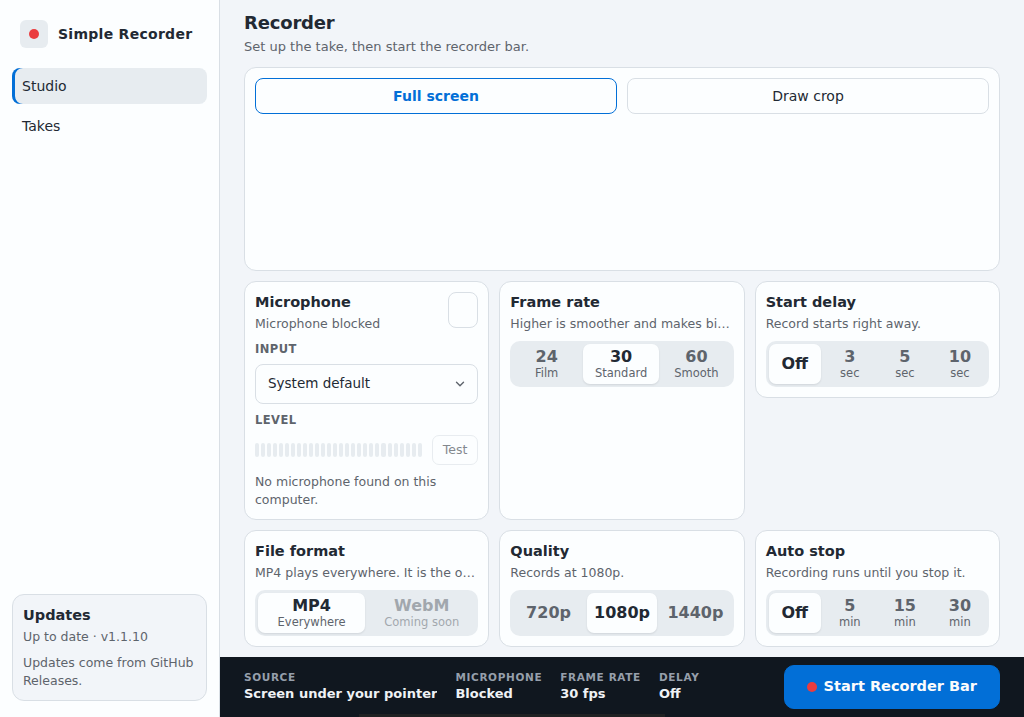
The Simple Recorder studio: full screen or draw crop, microphone, frame rate, start delay, file format, quality, and auto stop
The studio. Set up the take, then start the recorder bar.

The recorder bar

Every control in one strip at the top of your screen

The bar stays above your other windows, so you can set up, record, pause, and stop without going back to the app.

Ready to record

Pick a start delay, frame rate, what to record, and whether your microphone is on.

Recorder bar ready: Record, Delay 3 sec, FPS 30, Auto selected, Sound off

Area picked

Drag a box to record only part of the screen. The bar shows its size so you know what you are getting.

Recorder bar with Area 1280 by 720 selected, 60 FPS, and sound on

Recording

The bar shrinks to a clock, Pause, and Stop. Press Ctrl Shift Alt S to stop from anywhere.

Recorder bar while recording: Pause, a 0:42 clock, and Stop

Use cases

What people record with it

Pick a job to see the settings that fit it and how a take goes from start to file.

Bug reports

A video of the bug happening beats three paragraphs of steps. Record only the app that misbehaves and narrate what you expected to see.

Settings

Record
Window
Frame rate
30 fps
Start delay
3 sec
Sound
On
Quality
1080p
Auto stop
Off
  1. Click Start Recorder Bar, choose Window, and pick the app.
  2. Press Record, then reproduce the bug while you talk through it.
  3. Press Stop. Open the take from Takes and attach the MP4 to the ticket.
Features

Everything Simple Recorder does

No account, no watermark, and no time limit. Your recordings stay on your computer.

Capture

  • Full screenAuto records the screen the bar opens on.
  • One windowPick a window and the take is framed to it.
  • Area you drawDrag a box, or click one corner and then the other. Good for leaving out the taskbar.
  • MicrophoneChoose an input, check the level meter with Test, and turn sound on or off from the bar.
  • Frame rate24 fps for film, 30 fps standard, or 60 fps for smooth motion.
  • Quality720p, 1080p, or 1440p output. Larger screens are scaled down to fit.

Control

  • Floating recorder barAlways on top. Record, delay, FPS, target, sound, pause, stop, and close in one row.
  • Start delayOff, 3, 5, or 10 seconds with a countdown before the take starts.
  • Pause and resumeSkip the parts you do not want without starting a new file.
  • Auto stopEnd the take after 5, 15, or 30 minutes. It saves the same way as Stop.
  • Stop hotkeyCtrl Shift Alt S stops the take from any app.

Your takes

  • MP4 filesPlays in every browser, chat app, and video editor.
  • Filed by dayEach recording day gets its own folder in Videos\Simple recorder.
  • Takes pagePreview recent takes grouped by day, open the folder, or delete one. Delete always asks first.
  • Crash recoveryIf the app closes mid take, the footage already written is saved on the next launch.

Install and updates

  • No admin rightsInstalls for your Windows user only, with Start Menu and desktop shortcuts.
  • Automatic update checkLooks for a new version at launch and every 15 minutes.
  • One click updatePress Download in the Updates box and the app restarts on the new version.
  • Clean uninstallRemove it from Settings > Apps. Your recordings are kept.
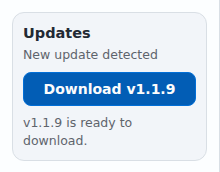
The Updates box saying New update detected with a Download v1.1.9 button

You never need to download the setup again

When a new release is out, the Updates box in the bottom left of the app says New update detected. Click Download and the app restarts on the new version.

How to install

Installed in under a minute

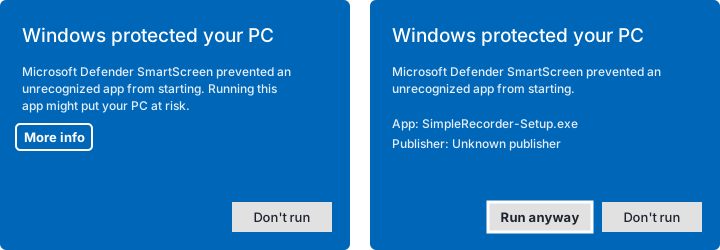
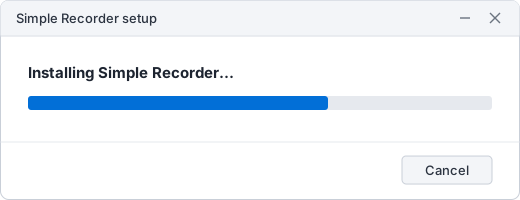
Four steps. No admin rights, no account, nothing to configure.

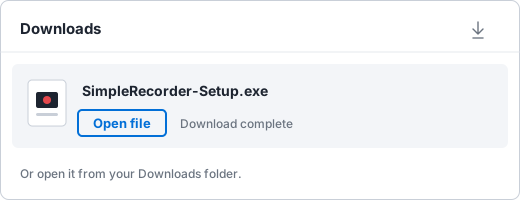
A browser downloads panel with SimpleRecorder-Setup.exe and an Open file link

1. Download the setup

Click Download for Windows. Your browser saves SimpleRecorder-Setup.exe. When it finishes, click Open file, or open it from your Downloads folder.

Get Simple Recorder

Download the installer

Get the newest installer from this site, then follow the install steps above.

From this website

Downloads the newest SimpleRecorder-Setup.exe straight from this site.

Checking the latest release...

Your files

Where everything goes

WhatFolder
Recordings, one folder per dayVideos\Simple recorder
The app%LOCALAPPDATA%\Programs\Simple Recorder
Settings and logs%APPDATA%\Simple Recorder

Uninstall

Open Settings > Apps, find Simple Recorder, and choose Uninstall. Your recordings in Videos\Simple recorder are kept.

System requirements

Windows 10 or Windows 11, 64 bit. A microphone is optional.

Source code

Simple Recorder is developed on GitHub. Every push to main builds and publishes a new release.