Products / Windows app
JPerformance
Task Manager shows the last minute. JPerformance keeps a history. It records how your PC performs over time and tells you which apps used the most CPU, memory, disk and network, and when.
Your data stays on your PC
History is saved in %APPDATA%\JPerformance and nothing is sent anywhere. It samples every 5 seconds and removes history older than 30 days on its own.
Updates come from GitHub Releases. When there is a new version, the bottom of the menu shows Install and What's new. Nothing installs until you press Install.
Found a bug? Report it on Discord.
Features
What JPerformance does
A small helper keeps recording after you close the window, so the history is there when you need it.
See it now
- Right nowLive CPU, memory, disk and file I/O, network, and the apps using the most, with a short note on what each one is.
- Running appsEvery running app with its processes, CPU and memory, and a Stop app button. Windows system processes can't be stopped here.
- Track an appRecord one app every second for 10 minutes, 30 minutes, or until you stop it, with live charts and a summary.
Look back
- HistoryCharts for the last hour up to 30 days, for the whole PC or one app. Hover any point to see which apps were behind it.
- Busiest timesA weekday by hour map of when your PC works hardest.
- AppsEvery app ranked by CPU, memory or I/O over a time range.
Understand it
- InsightsPlain findings such as your busiest hour and what caused it, long stretches of high CPU, and times memory was nearly full.
- Background trackingKeeps recording after you close the window. Tick Start with Windows to keep it going after a restart.
- Updates you chooseA card at the top of the window offers each new version. Nothing installs unless you press Install.
How to install
Install JPerformance
JPerformance is a single app file. There is no setup to run and no admin rights needed.
1. Download the app
Click Download for Windows. Your browser saves JPerformance.exe to your Downloads folder.
2. Put it in a folder
Move JPerformance.exe to a folder of your own, for example Documents\JPerformance. Avoid Program Files: JPerformance replaces its own file when it updates, so it needs a folder you can write to.
3. Open it
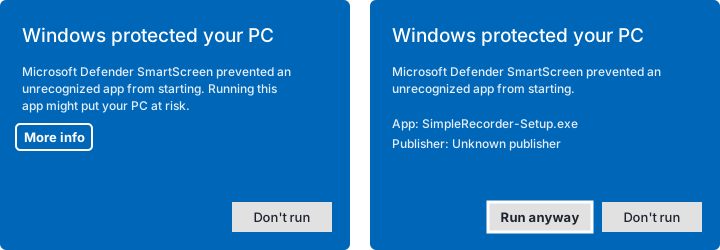
Double-click JPerformance.exe. Windows may show Windows protected your PC, because the app is not signed by a known publisher. Click More info, then Run anyway. Tracking starts right away, and charts fill in as history builds up.
Get JPerformance
Download the app
Get the newest version from this site, then follow the install steps above.
From this website
Downloads the newest JPerformance.exe straight from this site.
Checking the latest release...
From GitHub Releases
Always the newest build. Older versions and release notes are on the Releases page.
Published as a GitHub Release on every update.
From source
Clone the repo and build it with Rust (MSVC toolchain).
git clone https://github.com/Josephivgi/JPerformance.git
cd JPerformance
cargo build --release
Your files
Where everything goes
| What | Folder |
|---|---|
| The app | Wherever you put JPerformance.exe |
| History and recordings | %APPDATA%\JPerformance |
Uninstall
Untick Start with Windows at the bottom of the menu and close the window. Then end JPerformance in Task Manager, because background tracking keeps running, and delete JPerformance.exe. Delete %APPDATA%\JPerformance too if you don't want to keep your history.
System requirements
Windows 10 or Windows 11, 64 bit.
Command line
JPerformance.exe --report 24 prints the last 24 hours of findings. --check-update and --update check for and install a new version.
FAQ
Common questions
How do I see which app slowed down my PC earlier?
Task Manager only shows what is happening now. JPerformance records every app in the background, so you can open History, pick the time your PC was slow, and click the chart to see which apps used the most CPU and memory at that moment.
Does JPerformance send my data anywhere?
No. Everything stays on your PC in a SQLite file in %APPDATA%\JPerformance. The only thing it asks the internet is GitHub, to check for a new version.
Does JPerformance slow down my PC?
It takes one sample every 5 seconds and saves per-app totals once a minute, keeping only apps that used a noticeable amount. History older than 30 days is removed automatically.
Does JPerformance track GPU use?
Not yet. It tracks CPU, memory, disk and file I/O, network, and how many processes are running.
How do updates work?
JPerformance checks GitHub Releases when it opens, every 30 minutes, and when you come back to the window. When there is a new version, the bottom of the menu shows Install and What's new. Nothing installs until you press Install.