JAgents plugins: ask an agent for a new page, and get one
Short answer
Plugins let JAgents do things it could not do when you installed it. You do not have to write code. Ask an agent in JAgents for what you want, and it builds the plugin while you watch. One agent built a whole SSH page next to Threads that checks every server you connect to and lists your SSH keys. Every plugin has an on/off switch and an undo button, so trying one is safe.
JAgents is a free app for Windows that runs your AI coding agents side by side: Claude Code, Codex, Devin, Cursor and others. Plugins are add-ons that give JAgents new features. The best part is that you do not need to write them yourself. You can ask one of your agents to make one, and a few minutes later it is part of the app.
This post shows what that looks like, using a real example: an SSH page that one of my agents built.
What plugins can do
A plugin can add almost anything to JAgents:
- A new page. Like the SSH page below, with its own tab next to Code and Threads.
- A new look. The new chat design in JAgents, JSystems New UI, is a plugin. It comes with the app and is on by default.
- New tools for your agents. The built-in browser is a plugin too. It lets agents open web pages, read them and click around, while you watch in a browser pane.
- Smaller things. A button in the top bar, a section in the sidebar, or a new kind of pane.
The SSH page
If you work with servers, you connect to them over SSH. Usually you find out a server is down when something breaks. I wanted one place to see all of them at a glance, so I asked the agent I was working with in JAgents:
Make a new top-level page in JAgents, the same kind as Threads and Code, where I can check my SSH keys and server status.
It built a plugin, and JAgents got a new SSH tab, right next to Code and Threads:
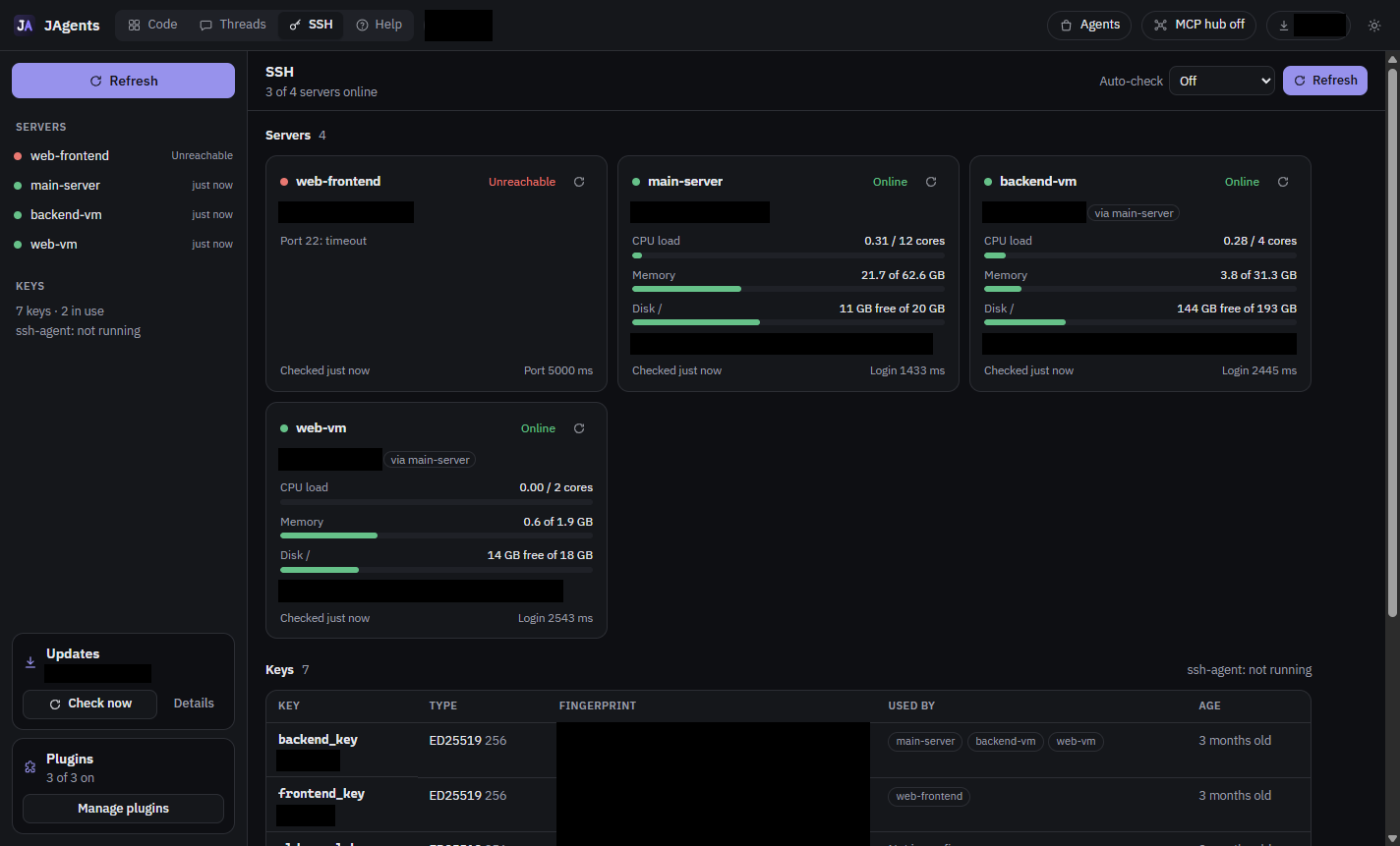
Here is what you get:
- Every server you connect to, in one list. The page finds them on its own, from the same settings file
sshalready uses. There is nothing to set up. - A green or red dot for each one. When a server is down, the page tells you why in plain words, like "Unreachable" or "Key rejected", so you know where to start.
- How busy each server is. CPU load, memory and disk space show as bars, along with how long the server has been running.
- A Refresh button, and Auto-check to check again every 5, 15 or 60 minutes while the page is open.
Below the servers is a list of your SSH keys:
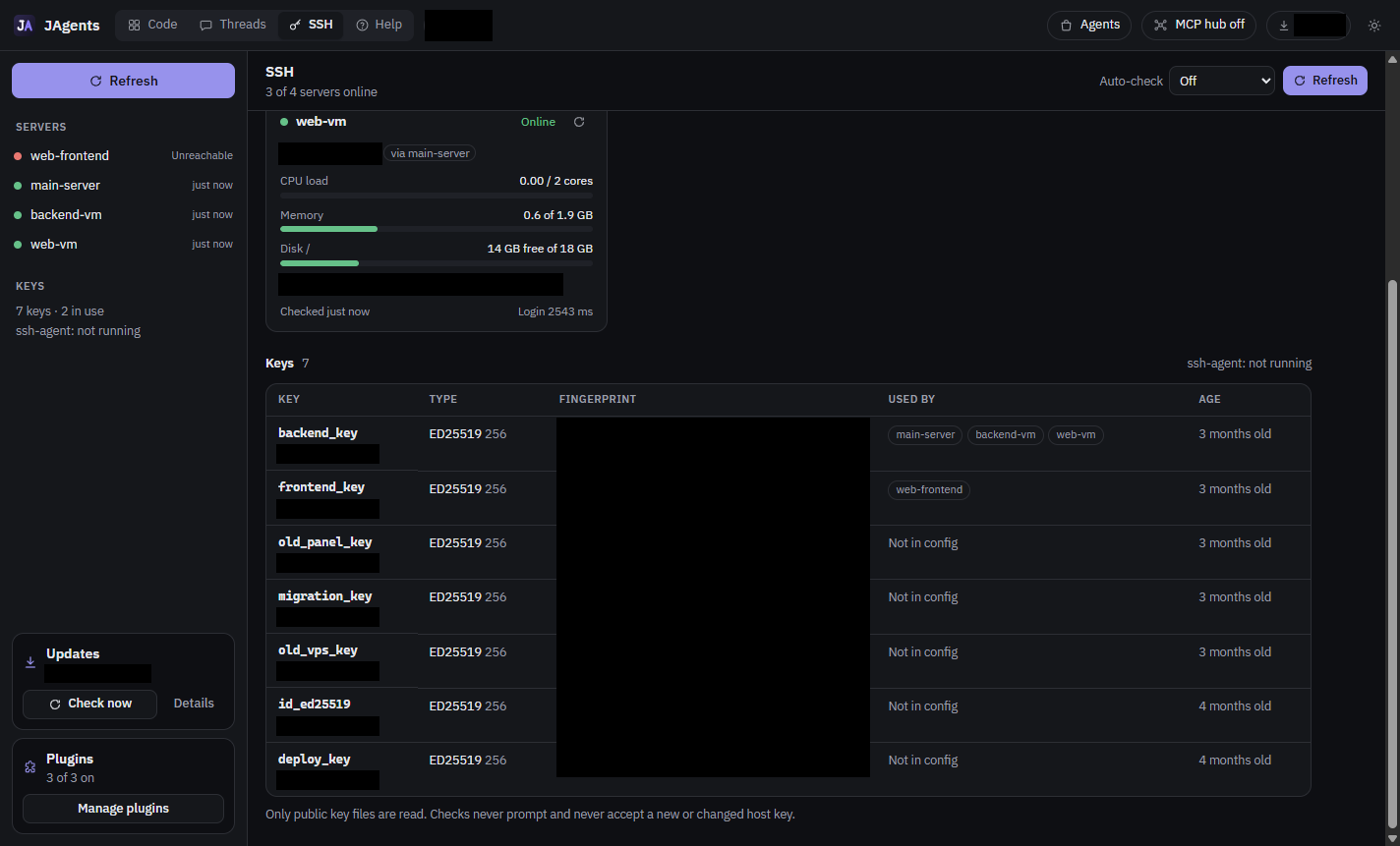
This helped me right away. Five of my seven keys are not used by any server in my settings. Those are old keys I can clean up.
It is careful with your keys
The page only looks. It never changes anything on your servers. It only reads your public keys, never your private ones. If a server's identity is new or has changed, it reports that and does not accept it, so it cannot be tricked into trusting the wrong server.
It could do more
The page only reads today, but a plugin can do much more. You could ask for a button that makes a new key, one that copies a key so you can paste it into a server, or a warning when a key gets old. Ask the agent, and it adds the feature to the same page.
How to get a plugin
You do not need to know how to code.
- In JAgents, turn on MCP hub in the top bar. This lets your agents work on JAgents itself.
- Open an agent, in Code or Threads, and describe what you want. For example: "Add a new top-level page, like Threads and Code, that shows my SSH servers."
- Watch it appear. Plugins load right away. There is no restart and no reinstall.
If something is not right, tell the agent, and it fixes the plugin the same way.
Turning plugins on and off
All your plugins are in one place. Click Manage plugins at the bottom of the sidebar:
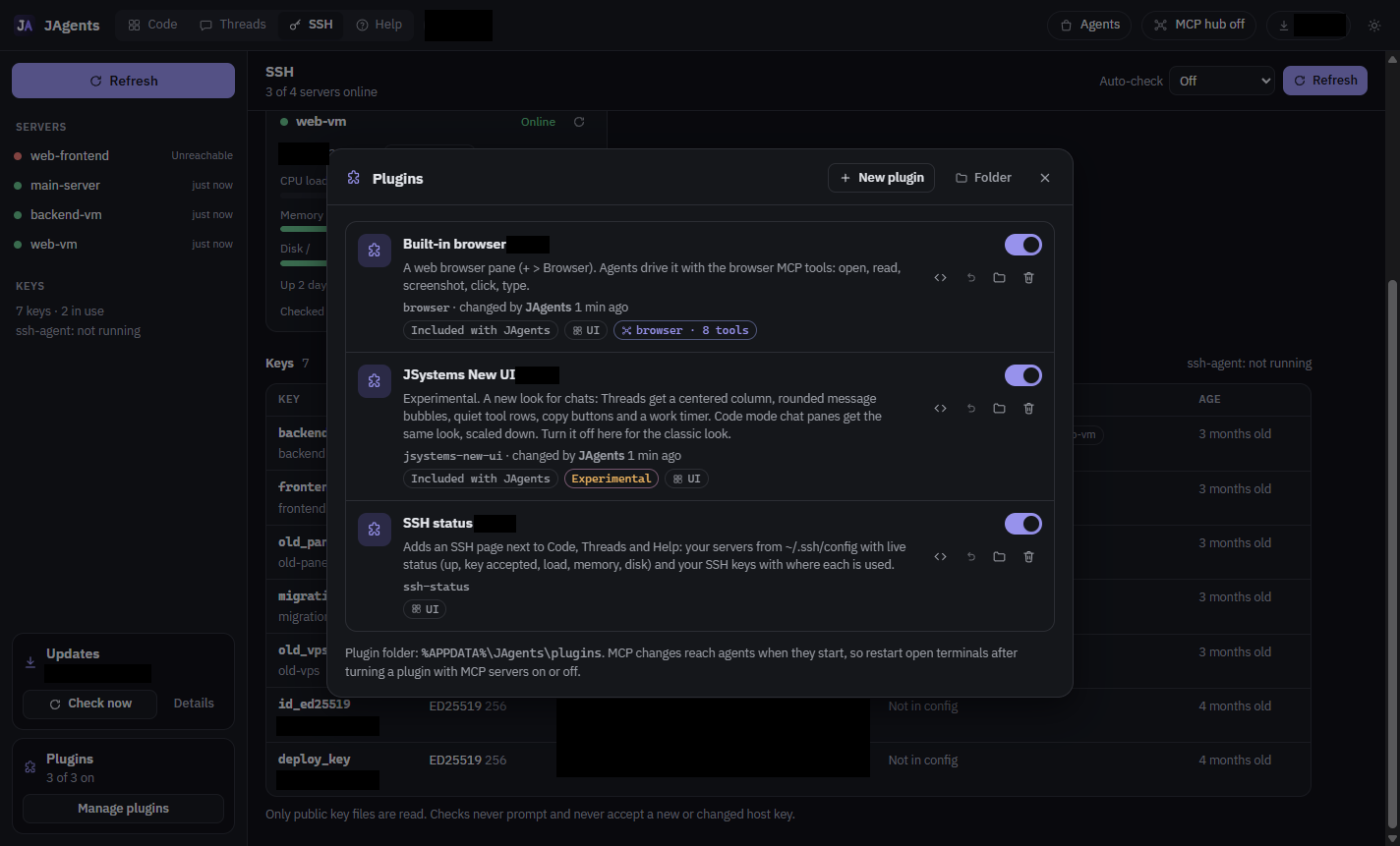
- The switch turns a plugin on or off.
- The undo button steps back to an earlier version. JAgents keeps the last 20 versions of every plugin.
- The trash button removes it. Removed plugins go to a trash folder, so you can still get them back.
- "Changed by" shows who made the last change: you, JAgents, or which agent.
If a plugin ever breaks the window, press Ctrl+Shift+F12. That turns every plugin off and reloads JAgents. Then turn them back on one at a time to find the one that broke.
A word on trust
A plugin can do anything a program on your computer can do. That is what makes them powerful: the SSH page can talk to your servers because of it. It also means you should only turn on plugins you trust. Plugins your own agent made for you are fine. For a plugin someone else sends you, click the code button in the Plugins panel and read it first, or ask an agent to read it and explain what it does.
Try it
JAgents is in beta for Windows 10 and 11. Get it from the JAgents page, or update from the Updates box in the sidebar. JSystems New UI and the built-in browser come with it. Then ask an agent for the page you have always wanted. Found a bug? Report it on Discord.
Common questions
Do I need to know how to code to use JAgents plugins?
No. Turn on the MCP hub in the top bar, then ask any agent in JAgents for what you want. The agent writes the plugin, and JAgents loads it right away. You can turn it off or undo it in the Plugins panel.
Can JAgents show if my SSH servers are online?
Yes, with a plugin. The SSH plugin in this post lists every server from your SSH settings, shows whether each one is online and accepts your key, and shows its load, memory and disk. It does not come with JAgents. You can ask an agent in JAgents to build one like it.
Does the SSH page read my private keys?
No. It only reads public keys, to show which servers use each one. It lets ssh use your private keys to log in, the same as when you connect yourself, and it never accepts a new or changed server identity.
What if a plugin breaks JAgents?
Press Ctrl+Shift+F12. That turns every plugin off and reloads the app. Then open Manage plugins and turn them back on one by one, or use the undo button to go back to a version that worked.
Are JAgents plugins safe?
Plugins can do anything a program on your computer can do, so only turn on plugins you trust. Plugins you asked your own agent to make are a safe start. For others, read the code with the code button in the Plugins panel first, or ask an agent to explain it.